Disclaimer
All information shown on this page is for illustrative purposes only and should not be construed as investment, financial, market or other advice. Any information shown on this page that purports to be based upon past or current market conditions may not be complete, timely or accurate and, in any event, is not predictive of future outcomes.
Report This Indicator
(Chart Chess)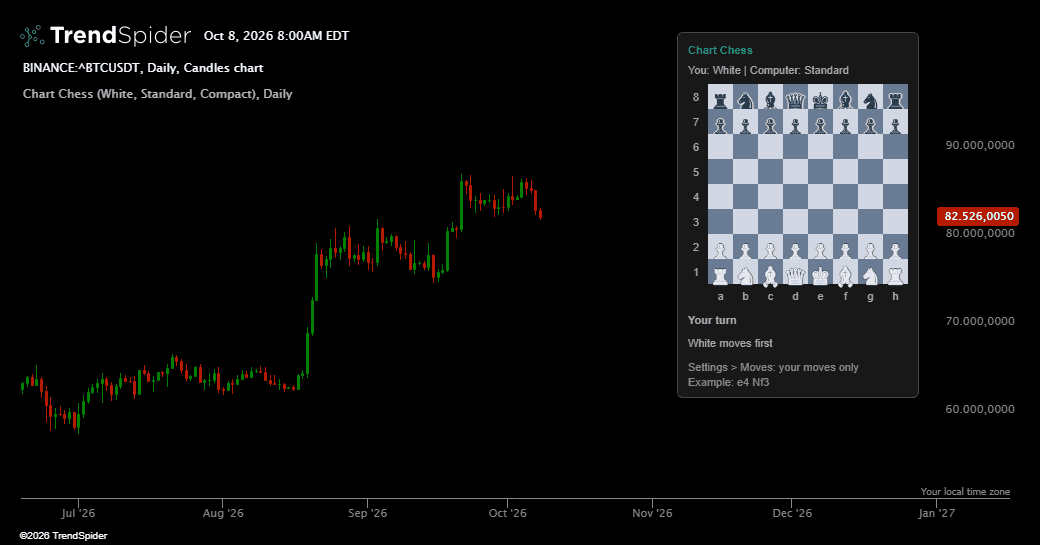
Chart Chess places a compact chessboard over the right side of your trading chart. When you want a brief mental break while following the market, enjoy a few chess moves at your own pace against the computer. The board shows the latest move, your turn and the game status.
Play through the indicator settings. Add your moves to the Moves field using e4 or Nf3, or coordinates such as e2e4. Enter only your own moves and the computer replies automatically. The board itself does not accept clicks.
🔹 Key Features
How to Play
Open the indicator settings. For a new game, clear Moves, turn Claim Draw off and choose Play As and Difficulty. With White selected, enter e4 in Moves and apply the settings. The computer replies automatically and its move appears below the board.
For your next turn, keep your earlier entries and add your next move after a space, for example e4 Nf3. Apply the settings after each change. Enter only your own moves. When playing Black, the computer makes the opening move automatically.
To undo your last turn and the computer's reply, remove the final entry from Moves and apply. To restart, clear Moves, turn Claim Draw off and apply. Use Inspect Square, for example g1, to see legal destinations before choosing your move.
Your Computer Opponent
Choose White or Black and select Easy, Standard or Hard. When you play Black, the computer makes the opening move. Identical game settings and move history produce the same computer replies.
Legal Moves and Game Status
Castling, en passant and promotion are supported. Enter promotions with a piece choice, such as a8=Q or a7a8n. Check, checkmate, stalemate and basic insufficient material draws appear on the board. An invalid entry displays its number and leaves the last valid position visible so you can correct the Moves field.
Square Inspection
Enter a square such as g1 in Inspect Square to see the legal moves for the piece on that square. Available destinations receive board markers and appear as text below the board. Inspection follows the current turn and does not make a move.
Move History and Undo
The latest move is highlighted, the latest computer reply is displayed separately and Show History reveals recent moves. To continue your game, append your next move to your existing entries. To undo, remove your final entry. This also removes the corresponding computer reply.
Draws and New Games
Repetition and move count draws are supported. When a draw can be claimed, a message appears and Claim Draw ends the game. The computer can also claim an available draw on its turn. Clear Moves to start again and turn Claim Draw off. Keep Play As and Difficulty unchanged during a game, or clear Moves before changing them.
Board Display
Choose Compact or Large, reverse the view with Flip Board and change the Accent Color. Playing Black automatically places your pieces at the bottom unless you flip the view. Board coordinates, contrasting pieces and theme aware text support both light and dark charts. Show History can be disabled to reduce the panel height.
Game Progress
Chart price updates and timeframe changes do not advance the game when the game settings and Moves remain the same. The Moves field supports up to 120 entries containing your own moves and is limited to 2400 characters. This indicator provides a chess game and does not generate trading signals.
Traders also viewed